CPS TEST
How fast can you click? Test your click speed now.
| # | Animal | CPS | Clicks | Time | Share |
|---|---|---|---|---|---|
| No scores yet — start clicking! | |||||
You May Like These Free Online Tools:
How to Improve Your Mouse Click Speed: 15 Advanced Tips From Gaming Experts (2026 Guide)
Meta Description: Master your mouse click speed with 15 expert-backed tips. Learn techniques, gear setup, and training routines used by professional gamers to boost CPS fast.
Why Your Clicking Speed Matters More Than Ever
Can you click your mouse fast? If you're a gamer, content creator, or even just someone who works on computers all day, the answer probably matters more than you think.
Here's the reality: Your clicking speed directly impacts your performance. In competitive gaming, a difference of just 2-3 clicks per second can determine victory or defeat. For content creators, faster clicking means more productivity. For casual users, it's just satisfying to know you're clicking quicker than average.
But here's the frustrating part: Most people max out at 5-7 clicks per second and think that's their limit. They don't realize that clicking speed is a completely trainable skill—like typing speed or running speed.
In this comprehensive guide, I'm sharing 15 proven techniques used by professional gamers to increase their clicking speed. Some are about technique. Others are about equipment. And some are pure training methods. By the end, you'll have a complete blueprint to boost your CPS and maintain it long-term.
What Is Mouse Click Speed (CPS)?
Before we dive into improvement strategies, let's clarify what we're actually measuring.
CPS stands for "Clicks Per Second." It measures how many times you can click your mouse button within a one-second time period.
Quick Statistics:
- Average CPS: 5-7 clicks per second
- Beginner CPS: 3-5 clicks per second
- Advanced CPS: 10-14 clicks per second
- Professional CPS: 15+ clicks per second
- World Record CPS: 16+ clicks per second (varies by duration)
For context, professional Minecraft PvP players average 10-13 CPS, while FPS gamers typically aim for 8-12 CPS for optimal performance.
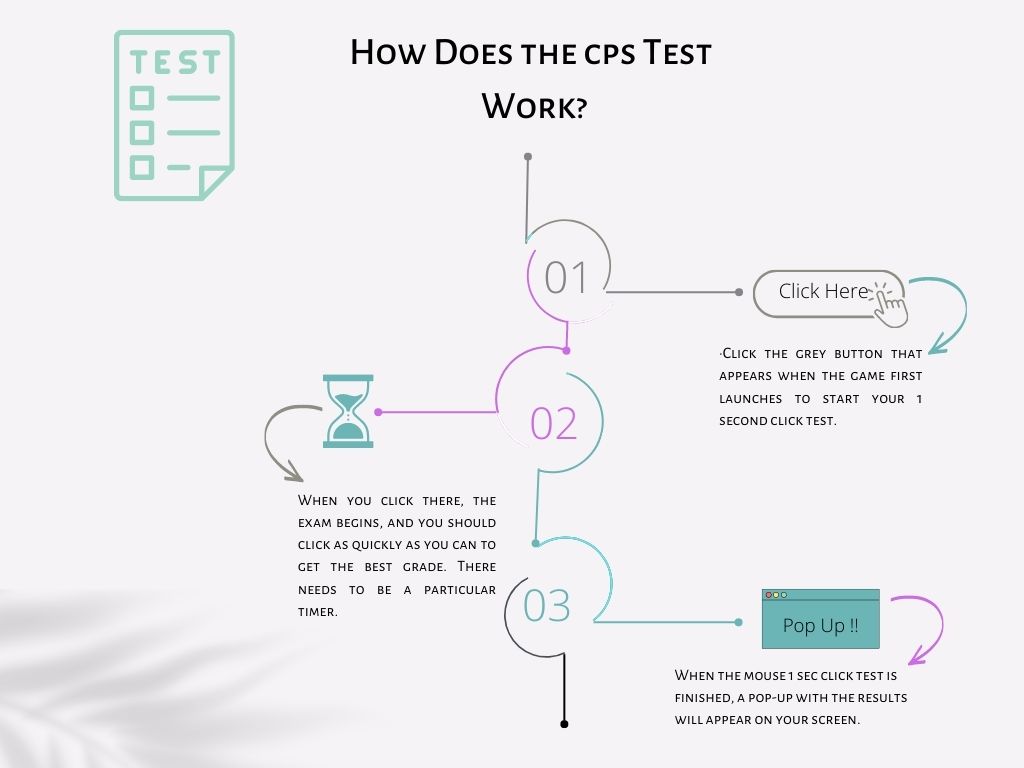
Want to test your baseline? Check your current CPS on our testing tool right now. This is your starting point.
The 15 Best Tips to Improve Your Mouse Click Speed
Tip #1: Choose the Right Clicking Technique (Foundation)
Not all clicking methods are created equal. Your technique determines your ceiling CPS.
Three Primary Techniques:
1. Jitter Clicking (Highest CPS Potential)
Jitter clicking involves creating rapid hand vibrations by tensing your arm and hand muscles. The vibration translates into clicks.
How to Jitter Click:
- Grip your mouse firmly but not tightly
- Position your index finger on the mouse button
- Tense your forearm and hand muscles (like making a fist)
- Allow the tension to create vibrations
- Click as the vibrations occur
- Release tension, repeat
Pros:
- Highest CPS potential (12-16 CPS)
- Uses natural muscle mechanics
- Works with any mouse
Cons:
- Requires significant practice (2-3 weeks)
- Can cause hand fatigue initially
- Risk of RSI (repetitive strain injury) if done incorrectly
Best For: Competitive Minecraft players, FPS gamers
CPS Potential: 10-16 clicks per second
2. Butterfly Clicking (Most Comfortable)
Butterfly clicking uses alternating index and middle fingers to click. It mimics a butterfly wing motion.
How to Butterfly Click:
- Position both index and middle finger on the mouse button
- Lightly tap with your index finger
- Immediately tap with your middle finger
- Continue alternating rapidly
- Keep motion light—this isn't a hard clicking motion
Pros:
- More natural and less fatiguing than jitter
- Lower injury risk
- Easier to learn quickly
- Feels smooth and controlled
Cons:
- Lower CPS ceiling (8-12 CPS typically)
- Some servers/games may view it as suspicious
- Requires coordinating two fingers
Best For: Casual gamers, players who want comfort, those avoiding repetitive strain
CPS Potential: 8-12 clicks per second
3. Drag Clicking (Specialized Technique)
Drag clicking involves dragging your finger across the mouse button instead of lifting between clicks. It's primarily used in specific games like Minecraft.
How to Drag Click:
- Press your index finger on the mouse button
- Keep the button pressed while dragging your finger slightly
- This creates multiple register clicks
- Maintain light pressure (not hard clicking)
Pros:
- Very high CPS (15-25 clicks possible)
- Unique feeling that some players prefer
- Great for specific games
Cons:
- Not suitable for all mouse types
- Can damage mouse buttons with heavy use
- Limited usefulness outside specific games
- Often banned on competitive servers
Best For: Minecraft offline training, specific server games
CPS Potential: 15-25 clicks per second (varies by mouse)
Recommendation: Start with butterfly clicking if you're a beginner. Master jitter clicking if you're serious about competitive gaming.
Test each technique with our CPS testing tool. You'll quickly discover which feels most natural for your hands.
Tip #2: Invest in a High-Quality Gaming Mouse
This is non-negotiable. Your mouse hardware directly determines your CPS ceiling.
The Problem with Standard Mice: Standard office mice have polling rates of 125-1000 Hz (checks per second). This creates a physical ceiling on how many clicks the mouse can register.
The Solution: Gaming Mouse with High Polling Rate
Look for these specifications:
| Feature | Minimum | Ideal | Why It Matters |
|---|---|---|---|
| Polling Rate | 1000 Hz | 8000+ Hz | More responsive clicks, higher CPS potential |
| Weight | < 100g | 50-80g | Lighter = faster movement = higher speed |
| Button Response | < 1ms | < 0.5ms | Faster registration = higher CPS count |
| Grip Options | - | Ergonomic | Reduces hand fatigue |
| DPI Range | 400-12,000 | 400-16,000 | More adjustment flexibility |
Best Gaming Mice for Click Speed (2026)
1. Razer Basilisk Ultimate ($50-80)
- Polling Rate: 8000 Hz
- Weight: 99g
- CPS Potential: 12-15
- Best For: All-around gaming
- Why It Wins: Great balance of responsiveness and comfort
2. SteelSeries Rival 600 ($40-70)
- Polling Rate: 8000 Hz
- Weight: 96g
- CPS Potential: 11-13
- Best For: Budget gamers
- Why It Wins: Excellent budget option, great reviews
3. FinalmMouse Air58 ($70-100)
- Polling Rate: 8000 Hz
- Weight: 58g
- CPS Potential: 12-14
- Best For: Fast clicking enthusiasts
- Why It Wins: Ultra-lightweight, beloved by competitive players
4. Corsair M65 RGB Elite ($50-80)
- Polling Rate: 8000 Hz
- Weight: 97g
- CPS Potential: 11-14
- Best For: Customizable enthusiasts
- Why It Wins: Adjustable weights, RGB lighting
My Recommendation: Start with SteelSeries Rival 600 ($40-70). It offers the best value for click speed improvements. Upgrade to Razer Basilisk or FinalmMouse once you're serious about competitive play.
Tip #3: Set Up Your Mouse Sensitivity Correctly
Polling rate is only half the equation. Your DPI and sensitivity settings dramatically impact clicking performance.
Optimal Settings for Click Speed:
- DPI: 800-1600
- In-Game Sensitivity: 0.5-1.0 (varies by game)
- Acceleration: OFF (always disable mouse acceleration)
Why These Settings?
- DPI 800-1600 provides a sweet spot between speed and control
- Sensitivity 0.5-1.0 prevents overshooting while maintaining response time
- No Acceleration ensures consistent, predictable movement
How to Configure:
Windows:
- Settings > Devices > Mouse
- Toggle "Enhance pointer precision" OFF
- Set pointer speed to 6/11
Game-Specific:
- Minecraft: Sensitivity 0.5-1.0
- Valorant: 0.5-0.8
- CS:GO: 1.0-1.5
- Fortnite: 10-12 (game-specific)
Test Your Sensitivity: Use our CPS test with different sensitivity settings. Your score should feel consistent and smooth.
Tip #4: Master Your Grip and Hand Positioning
Your physical hand position determines comfort, speed, and injury risk.
The Optimal Claw Grip (Recommended for CPS):
- Palm Position: Resting on the desk, not lifting
- Finger Position:
- Index finger on mouse button or near it
- Middle finger naturally curved
- Ring and pinky fingers relaxed
- Wrist Position: Slightly elevated, not bent
- Forearm Position: Resting on desk at a 90-degree angle from torso
Why Claw Grip Wins:
- Minimizes finger travel = faster clicks
- Reduces hand fatigue
- Maintains precision and control
- Lower injury risk than alternative grips
Grips to Avoid:
- Palm Grip: Comfortable but slow (5-7 CPS max)
- Fingertip Grip: Too tiring for extended play
- Modified Grips: Usually unstable
Quick Exercise: Hold the claw grip for 2 minutes. Does it feel comfortable? If not, adjust slightly until it's natural. Your grip should feel relaxed, not strained.
Tip #5: Develop a Structured Practice Schedule
Random clicking practice won't cut it. Elite clickers practice deliberately.
The Science Behind Practice:
- Motor skills develop through repetition + rest
- Your brain consolidates muscle memory during sleep
- More hours ≠ faster improvement
- Quality beats quantity always
Optimal Training Schedule:
| Frequency | Duration | Best Practice |
|---|---|---|
| Daily | 20 minutes | Focused, high-quality session |
| Frequency | 5-6x per week | Build consistency |
| Rest | 1-2 days per week | Allow recovery, prevent overuse |
| Session Gap | 12+ hours | Brain consolidates learning |
Weekly Training Structure:
Monday - Wednesday - Friday (High Intensity)
- 5-minute warmup
- 10-minute technique work
- 5-minute peak speed sprints
- Total: 20 minutes
Tuesday - Thursday (Moderate Intensity)
- 5-minute warmup
- 10-minute endurance testing
- 3-minute cool down
- Total: 18 minutes
Saturday (Skill Focus)
- Choose one technique to master
- 25-30 minute deep practice
- Video yourself, analyze form
Sunday (Rest or Light Testing)
- Optional: 10-minute test session
- Review weekly progress
- Rest and prepare for week
Tip #6: Use Proper Warm-Up Exercises
Cold hands perform 15-25% worse than warm hands. Always warm up before testing or training.
5-Minute Pre-Practice Warm-Up:
Part 1: Wrist Mobility (1 minute)
- Rotate wrist clockwise 15x
- Rotate wrist counter-clockwise 15x
- Flexing: Pull fingers back gently, hold 5 seconds
- Extension: Point fingers forward, hold 5 seconds
Part 2: Finger Stretches (1.5 minutes)
- Index finger: Gently pull back, hold 3 seconds
- Middle finger: Same technique
- Ring finger: Same
- Pinky: Same
- Repeat 2x
Part 3: Light Movement (1.5 minutes)
- Shake out hands (30 seconds)
- Slow clicking (20 clicks, easy pace)
- Progressive speed clicking (30 seconds, gradually increase speed)
- Rest 30 seconds
Part 4: Mental Preparation (1 minute)
- Take 3 deep breaths
- Visualize a successful practice session
- Set your goal (e.g., "I want 10.5 CPS today")
Tip #7: Test on the Right CPS Testing Tool
Not all CPS tests are created equal. Choose the right tool for your training goal.
Available Testing Options:
| Test Type | Duration | Best For | Tool |
|---|---|---|---|
| Standard | 5-60 seconds | General baseline | CPS Test |
| Jitter-Focused | 10 seconds | Jitter training | Jitter Click Test |
| Butterfly-Focused | 10 seconds | Butterfly training | Butterfly Click Test |
| Endurance | 30-60 seconds | Sustained speed | 30/60 Sec Tests |
| Manual | Variable | Precision focus | Manual Click Test |
| Minecraft-Specific | 10 seconds | Game training | Kohi Click Test |
Recommended Testing Schedule:
- Monday: 10-second standard test (baseline measure)
- Wednesday: Technique-specific test (practice your main technique)
- Friday: 30-second test (endurance check)
- Saturday/Sunday: Optional manual test for accuracy work
Pro Tip: Keep a spreadsheet of your scores. Track:
- Date
- Time of day
- Test type
- Score
- Notes (tired? warmed up? different mouse?)
Seeing improvement over weeks is extremely motivating.
Tip #8: Learn to Recognize and Fix Hand Fatigue
Hand fatigue kills your CPS performance. Learn to manage it proactively.
Signs of Hand Fatigue:
- CPS dropping after 5-10 seconds (performance cliff)
- Fingers feel heavy or sluggish
- Hand or wrist soreness
- Grip strength declining mid-session
- Accuracy dropping while speed is high
How to Combat Fatigue:
- Immediate Fix (During Test):
- Take 30-second breaks between tests
- Shake out your hands
- Stretch fingers and wrist
- Drink water
- Short-Term Fix (Between Sessions):
- Reduce daily practice by 50% for 3 days
- Focus on technique quality, not speed
- Ice your hands for 10 minutes post-practice
- Do stretching exercises 2x daily
- Long-Term Prevention:
- Never practice more than 20-30 minutes daily
- Take 1-2 complete rest days per week
- Maintain healthy hand stretching routine
- Invest in good ergonomic setup
Important: If you feel sharp pain (not normal fatigue), stop immediately. Sharp pain indicates possible injury. Rest for 3-5 days before resuming.
Tip #9: Adjust Your Desk and Chair Setup for Ergonomics
Poor ergonomics sabotage your clicking speed AND harm your long-term health.
Ideal Desk Setup:
- Monitor Position:
- Top of screen at eye level
- 20-26 inches away
- Directly in front (no angling)
- Keyboard & Mouse Position:
- Elbows at 90-degree angle
- Forearms parallel to desk
- Mouse at same height as keyboard
- Mouse directly to the side (not front)
- Chair Position:
- Feet flat on floor
- Back supported by chair back
- Hips at 90 degrees
- Shoulders relaxed, not shrugged
- Desk Height:
- When sitting, forearms should be parallel to ground
- Standard desk height: 28-30 inches
Why This Matters: Poor posture creates tension, reduces blood flow, and limits your CPS potential. Correct ergonomics lets you practice longer with better form.
Quick Assessment:
- Are your wrists straight or bent? (Should be straight)
- Are your shoulders relaxed? (Should be relaxed)
- Is your back supported? (Should be supported)
If you answered "no" to any of these, adjust your setup.
Tip #10: Track Your Progress With Data
What gets measured gets improved. Track your clicking metrics.
Essential Metrics to Monitor:
- Average CPS: Your consistent speed across multiple tests
- Peak CPS: Your best single burst of clicking
- Variance: Difference between peak and average (lower = more consistent)
- Consistency: How similar are your week-to-week scores?
Tracking Template:
Week 1:
- Monday: 7.2 CPS
- Wednesday: 7.5 CPS
- Friday: 7.8 CPS
- Average: 7.5 CPS
- Trend: Improving ↑

Week 2:
- Monday: 7.8 CPS
- Wednesday: 8.1 CPS
- Friday: 8.3 CPS
- Average: 8.07 CPS
- Trend: Improving ↑
Analysis Questions:
- Am I improving week-to-week?
- Are certain days better than others?
- Does time of day affect my score?
- When did I plateau?
Tip #11: Experiment With Hand Positioning Variations
Small positioning adjustments can unlock hidden CPS potential.
Variations to Test:
1. Finger Position on Button
- Index finger fully on button (standard)
- Index finger edge on button (more sensitive)
- Multiple fingers hovering (butterfly setup)
2. Wrist Position
- Neutral, straight wrist (best for most)
- Slightly bent upward (some find faster)
- Slightly bent downward (avoid—reduces speed)
3. Forearm Angle
- Parallel to desk (standard)
- Slightly elevated (reduces wrist strain)
- Slightly angled inward (increases stability)
Experiment Protocol:
- Try one variation for 3-4 practice sessions
- Test on CPS tool with each variation
- Compare scores objectively
- Stick with the position yielding highest CPS
Most people find one "sweet spot" position. Testing helps you find yours.
Tip #12: Practice Burst Clicking vs. Sustained Clicking
Different games require different clicking styles. Train both.
Burst Clicking (High Speed, Short Duration):
- Used in: Minecraft PvP, fighting games, FPS games
- Goal: Max CPS for 5-10 seconds
- Training: Short CPS tests
Sustained Clicking (Moderate Speed, Long Duration):
- Used in: Clicker games, long PvP sessions, workflow tasks
- Goal: Consistent CPS for 30-60 seconds
- Training: Long duration tests
Training Splits:
Monday & Friday: Burst clicking focus
- 5-minute warmup
- 3x 10-second max effort tests
- Rest 2 minutes between tests
- Record best of 3
Wednesday: Endurance focus
- 5-minute warmup
- 1x 30-second consistent test
- Maintain steady speed (not sprinting)
- Rest 5 minutes
- Optional: 1x 60-second test
Tip #13: Use Video Recording to Analyze Your Form
You can't fix what you don't see. Record yourself clicking.
How to Record & Analyze:
- Record Setup:
- Use phone camera
- Angle to see side profile of hand
- Show mouse button clearly
- What to Look For:
- Is your hand position consistent?
- Do your fingers move smoothly?
- Are you tensing unnecessary muscles?
- Is your wrist straight or bent?
- Red Flags to Fix:
- Hand bouncing excessively (reduce tension)
- Wrist bending (straighten wrist)
- Inconsistent finger position (standardize)
- Shoulder tension (relax shoulders)
- Good Signs:
- Smooth, consistent hand position
- Fingers moving in controlled manner
- Minimal wrist movement
- Relaxed shoulders
Frequency: Record yourself once per week. Compare week-to-week videos to track improvement in form.
Tip #14: Optimize Your Technique Specifically for Your Chosen Method
Master one technique deeply instead of juggling multiple.
If You Choose Jitter Clicking:
- Practice hand tensioning without clicking (build muscle control)
- Start with slow tension, feel the vibrations
- Gradually increase intensity
- Test on Jitter Click Test
- Progression: Weeks 1-2 focus on feeling vibrations, Weeks 3-4 add clicking
If You Choose Butterfly Clicking:
- Practice alternating finger taps on desk (build coordination)
- Lighten your touch progressively
- Focus on rhythm and timing
- Test on Butterfly Click Test
- Progression: Weeks 1-2 slow alternation, Weeks 3-4 increase speed
If You Choose Drag Clicking:
- Only use for specific games (Minecraft)
- Practice on offline server first
- Build up drag distance gradually
- Test on 10-second test
- Progression: Light drag, increase pressure, increase speed
Tip #15: Join a Community and Track Competition
Social motivation accelerates improvement.
Where to Find CPS Communities:
- Reddit Communities:
- r/Minecraft (for Minecraft-specific CPS)
- r/gaming (general gaming)
- r/speedgaming (speedrunning focus)
- Discord Servers:
- CPS testing communities
- Minecraft PvP servers
- Gaming improvement groups
- YouTube Channels:
- Follow CPS improvement creators
- Watch professional gamers
- Learn new techniques
How Competition Helps:
- See what others achieve
- Feel motivated to improve
- Get tips and feedback
- Celebrate milestones together
Pro Tip: Share your progress. Say "Started at 6 CPS, now at 8.5 CPS in 4 weeks!" People find your journey inspiring, and you stay accountable.
Common Mistakes That Prevent CPS Improvement
❌ Mistake #1: Practicing Too Long
Training 2-3 hours daily creates diminishing returns and injury risk.
The Fix: 20 minutes daily beats 3 hours daily. Quality over quantity.
❌ Mistake #2: Ignoring Warm-Ups
Jumping into max-speed clicking without warming up.
The Fix: Always do the 5-minute warmup routine before testing.
❌ Mistake #3: Using the Wrong Mouse
Standard office mice cap your CPS at 6-8.
The Fix: Invest $40-80 in a gaming mouse with 8000+ Hz polling rate.
❌ Mistake #4: No Rest Days
Practicing 7 days a week prevents recovery and increases injury risk.
The Fix: Take 1-2 complete rest days weekly.
❌ Mistake #5: Copying Others' Setups
What works for pro player X might not work for you.
The Fix: Experiment with techniques, sensitivity, and positioning. Find YOUR sweet spot.
FAQ: Your Clicking Speed Questions Answered
Q: How long does it take to improve clicking speed?
A: Most people see 10-20% improvement within 2-3 weeks with consistent practice. Significant improvements (40%+) typically take 6-8 weeks.
Q: Can I improve if I have hand/wrist issues?
A: Maybe. Try lighter techniques like butterfly clicking with shorter practice sessions. If you have pain, consult a doctor before training.
Q: Do I need expensive equipment?
A: A $50-80 gaming mouse helps significantly. Beyond that, expensive gear offers diminishing returns. Practice matters more than price.
Q: What's a realistic CPS goal?
A: If you're at 5-6 CPS, aim for 9-10 CPS (realistic in 8 weeks). If you're at 8 CPS, aim for 12 CPS (realistic in 12 weeks).
Q: Should I focus on peak CPS or average CPS?
A: Average CPS matters more. Peak CPS shows your potential, but consistency matters in real situations.
The CPS Improvement Timeline
Weeks 1-2: Foundation
- Baseline testing
- Choose technique
- Begin daily practice
- Expected improvement: 5-10%
Weeks 3-4: Technique Development
- Master chosen technique
- Increase session intensity
- Better form consistency
- Expected improvement: 10-20% total
Weeks 5-8: Speed Building
- Push for higher CPS
- Mix burst and sustained practice
- Technique feels automatic
- Expected improvement: 30-50% total
Weeks 9+: Optimization
- Refine technique nuances
- Build endurance
- Maintain consistency
- Expected improvement: 40-100%+ (depending on starting point)
Conclusion: Your Action Plan
Improving your mouse click speed is 100% achievable with the right approach:
- Choose Your Technique (Jitter, Butterfly, or Drag)
- Get a Gaming Mouse (8000+ Hz, $40-80)
- Set Up Your Space (Ergonomic desk and chair)
- Practice Deliberately (20 minutes daily, structured schedule)
- Track Your Progress (Monitor CPS improvements weekly)
- Be Patient (Expect 8-12 weeks for major improvement)
Your first action? Test your current CPS on our CPS testing tool. Write down your score. That's your baseline.
Then, follow these 15 tips systematically. Check back in 4 weeks.
You'll be surprised how much you've improved.
{ "@context": "https://schema.org", "@type": "FAQPage", "mainEntity": [ { "@type": "Question", "name": "How long does it take to improve clicking speed?", "acceptedAnswer": { "@type": "Answer", "text": "Most people see 10-20% improvement within 2-3 weeks with consistent practice. Significant improvements (40%+) typically take 6-8 weeks." } }, { "@type": "Question", "name": "What's the best technique for improving CPS?", "acceptedAnswer": { "@type": "Answer", "text": "Jitter clicking offers the highest CPS potential (12-16), while butterfly clicking is more comfortable and less tiring (8-12 CPS). Choose based on your preference and goals." } }, { "@type": "Question", "name": "Do I need an expensive gaming mouse to improve CPS?", "acceptedAnswer": { "@type": "Answer", "text": "A $40-80 gaming mouse with 8000+ Hz polling rate is sufficient. Standard office mice will limit your CPS ceiling. Beyond that price range, expensive gear offers diminishing returns." } } ] }


